How to Switch Podcast Hosts Without Losing Subscribers
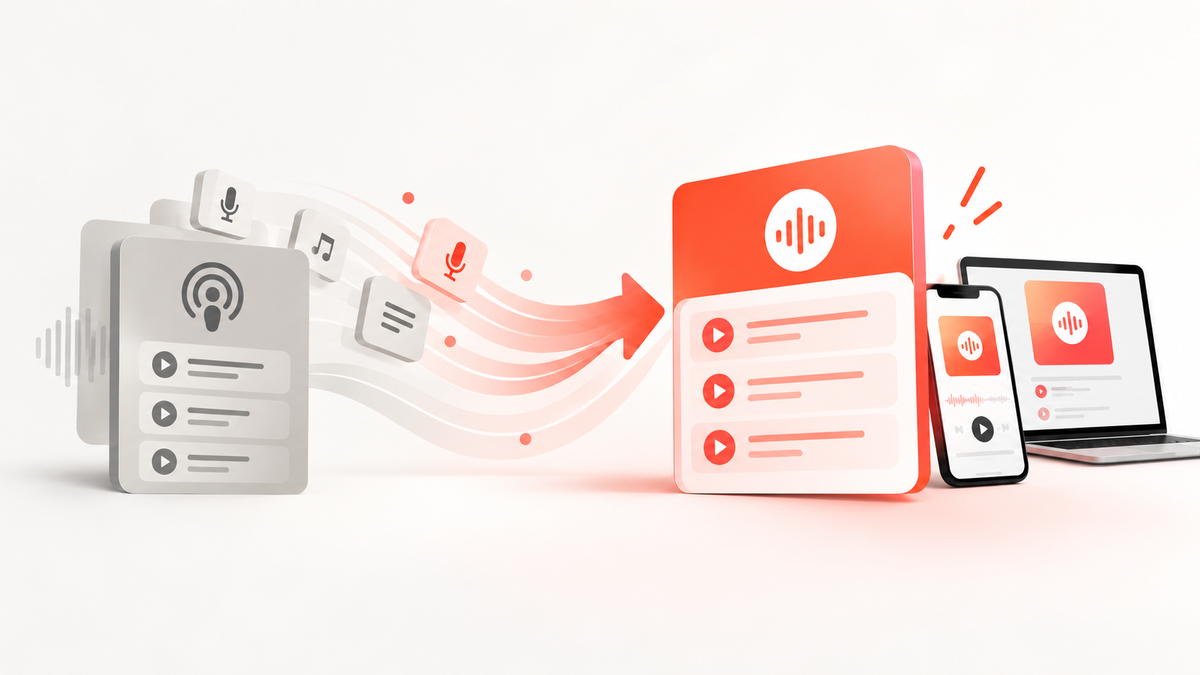
Switching podcast hosts means moving your episodes and RSS feed to a new provider. With an import and a 301 redirect, you keep your subscribers on Apple Podcasts, Spotify, and every other app.
Reading progress
In this article
In this article
Switching podcast hosts means moving all of your episodes and your RSS feed to a new hosting provider. The key is a 301 redirect from your old feed to your new one: it tells Apple Podcasts, Spotify, and every other podcast app where your show now lives, so your subscribers keep getting new episodes without doing a thing.
Switching Podcast Hosts: Key Takeaways
Import, don't start over: Your new podcast host reads your existing RSS feed and brings over your episodes, audio files, and show notes.
The 301 redirect is non-negotiable: According to Apple, a 301 redirect moves all of your followers to the new feed, including listeners outside Apple Podcasts. Without it, your audience never sees your new episodes.
Keep your GUIDs: Apple requires that every episode keeps a unique GUID that never changes. If GUIDs change, you end up with duplicate episodes.
No new listing: Keep your existing show on Apple Podcasts and Spotify and only change the feed URL.
Your stats stay behind: Download numbers from your old host don't transfer. Export them first.
Don't cancel too early: Keep your old account and the redirect running for at least four weeks so every platform picks up the new feed.
When Should You Switch Podcast Hosting Providers?
A podcast host stores your audio files, generates your RSS feed, and delivers your episodes to every listening app. When that service no longer fits your show, it's time to move. These are the reasons podcasters mention most often:
Support and reliability: Delayed publishing or a support team that takes days to reply are common triggers for a move.
Pricing and plans: Your show has grown, and your current host's pricing model doesn't work for you anymore.
Features: You're missing detailed analytics, monetization, video podcasts, or private podcasts.
Independence: You want your show on every platform instead of being locked into a single one.
Before You Switch: What You Need to Prepare
Good prep saves you from mistakes later. Check these items before you start:
Access to your old host: You need to log in to your current account, because that's where you'll set up the redirect.
Platform logins: Have your Apple Podcasts Connect and Spotify for Creators credentials ready.
Your RSS feed URL: Copy your podcast's actual feed URL, not the link to your Spotify show page or your podcast website.
A complete feed: Make sure every episode is in the feed and can be downloaded. Anything that isn't in the feed can't be imported.
Remove dynamic ads: It's a good idea to strip out dynamically inserted ads before the import so your MP3 files move over in their original form.
Back up your stats: Export your download numbers as a CSV file or take screenshots.
How to Switch Podcast Hosts in 5 Steps
1. Import your podcast to your new host
At your new podcast host, start an import and enter your current RSS feed URL. At Podigee, the import brings over the text and media from your feed, including existing episode GUIDs and publish dates. Both audio and video episodes are supported.
2. Check your new feed
Compare your new feed with the old one before you redirect anything. Apple recommends keeping your title, description, artwork, and audio consistent. Pay close attention to these points:
Are all episodes there?
Do the GUIDs match your old feed?
Are season and episode numbers correct? The Podigee import currently doesn't carry over these iTunes fields, so you'll need to add them again.
3. Set up a 301 redirect at your old host
This is the most important step of the whole move. In your old host's account, set up a permanent 301 redirect from your old feed to your new one. Some hosts also add the <itunes:new-feed-url> tag to point apps to your new feed.
Order matters here: publish and test your new feed first, then turn on the redirect at your old host.
4. Update Apple Podcasts and Spotify
Whatever you do, don't create a new listing. Keep the one you already have.
Apple Podcasts: Apple follows the 301 redirect. If you no longer have access to your old feed, you can change the feed URL directly in Apple Podcasts Connect by clicking Edit next to the RSS feed URL.
Spotify: Spotify also follows the redirect. To be safe, update your RSS feed and hosting provider in Spotify for Creators under Settings. If you can't access Spotify for Creators, contact Spotify support.
Other platforms: Check Amazon Music, YouTube, and other directories in their creator portals to confirm the new feed URL has arrived.
5. Wait, then cancel your old account
Platforms need a little time after the move. Transistor reports that Apple usually takes 24 to 48 hours to pick up the new feed. Apple itself recommends keeping the 301 redirect and the new feed tag in place for at least four weeks. Only cancel your old account after that, and check whether your old host keeps the redirect running once you've canceled.
What Happens to Your Subscribers, Ratings, and Stats?
Losing listeners is the biggest worry when switching podcast hosting providers. This table shows what moves with you and what doesn't:
What | Does it carry over? | What to watch out for |
|---|---|---|
Followers and subscribers | Yes, with a 301 redirect | Keep the redirect active long enough |
Downloaded episodes and playback progress (Apple) | Yes | GUIDs must not change |
Ratings and reviews | Yes, as long as you keep your existing listing | Don't create a new show on Apple or Spotify |
Stats from your old host | No | Export them as CSV or screenshots first |
Season and episode numbers | Partially | Check and fix them after the import |
Apple confirms that downloaded episodes, follow status, and playback position are kept and that Apple Podcasts analytics should stay consistent. Your new host's dashboard may still show unusual download numbers for the first few days. No host can import your previous host's stats, which is why exporting them beforehand matters so much. From the day you switch, you'll see every download in Podigee Analytics.
Common Mistakes When Switching Podcast Hosts
No redirect: Without a 301 redirect, Apple Podcasts and Spotify won't find your new episodes.
Creating a new listing: A second show on Apple or Spotify cuts you off from your followers and ratings.
Changed GUIDs: New GUIDs cause duplicate episodes in podcast apps.
Deleting the old account too soon: If your old feed disappears before every platform has switched, the redirect leads nowhere.
Forgetting your stats: Without an export, your historical numbers are gone once you cancel.
Podcast Migration Checklist
Gather logins for your old host, Apple Podcasts Connect, and Spotify for Creators
Export your stats from your old host
Remove dynamic ads and check that your feed is complete
Import your podcast to your new host via its RSS feed
Compare the new feed with the old one (episodes, GUIDs, season and episode numbers)
Publish and test your new feed
Turn on the 301 redirect at your old host
Confirm the feed URL on Apple Podcasts, Spotify, and other platforms
Watch for a few days to make sure new episodes show up everywhere
Cancel your old account after at least four weeks
Switching to Podigee: How We Help
When you move to Podigee, you bring your podcast straight into your account with the import. Depending on your account, you'll see “Import an existing podcast” or send an import request. Imports don't count against your encoding quota. Check the import costs and plan conditions before you start; you'll find every detail in our help article on transferring your podcast to Podigee.
From there, Podigee's podcast hosting and distribution sends your show to every platform, and you see all your numbers in one dashboard. If you have questions about the move, the Podigee team will help you personally.
Ready to switch? Sign up for Podigee for free and import your podcast in just a few steps.
Conclusion: Switch Podcast Hosts Without Losing Listeners
Switching podcast hosts isn't complicated if you stick to the right order: prepare, import, check, redirect, confirm on every platform, and only then cancel. With a clean 301 redirect and unchanged GUIDs, your listeners and ratings move with you. Looking for a new podcast host with personal support? Try Podigee and sign up for free.
FAQ: Switching Podcast Hosts
- Will I lose subscribers if I switch podcast hosts?
You won't lose subscribers when you switch podcast hosts as long as you set up a 301 redirect from your old feed to your new one. Apple Podcasts, Spotify, and other apps then pick up the new address automatically. Just make sure you don't create a new listing.
- How long does it take to switch podcast hosts?
The move of the podcast itself only takes a few steps: import, feed check, and redirect. How long the import takes depends on the host; at Podigee, there's no fixed processing time. Platforms then need some time to pick up the new feed, usually 24 to 48 hours for Apple. Keep your old account for at least four weeks before canceling.
- Will I keep my ratings and reviews on Apple Podcasts and Spotify?
Your podcast ratings and reviews on Apple Podcasts and Spotify stay with your show as long as you keep your existing listing and only change the feed URL. If you create a new show instead, you start from zero.
- Do my podcast stats transfer to the new host?
Your stats don't transfer when you switch podcast hosts. Your download numbers stay with your old host, so export them as a CSV file or screenshots before you cancel.
- What is a 301 redirect for a podcast?
A 301 redirect for a podcast is a permanent redirect from your old RSS feed to your new feed URL. Podcast apps use it to recognize that your show has moved and fetch new episodes from your new host from then on.
- When can I cancel my old podcast host?
You can cancel your old podcast host once every platform reliably pulls your new episodes from the new feed. Apple recommends keeping the redirect in place for at least four weeks. Before you cancel, check whether your old host keeps the redirect running after cancellation.