Podcast MCP Server: Use AI for Your Podcast Analytics and More
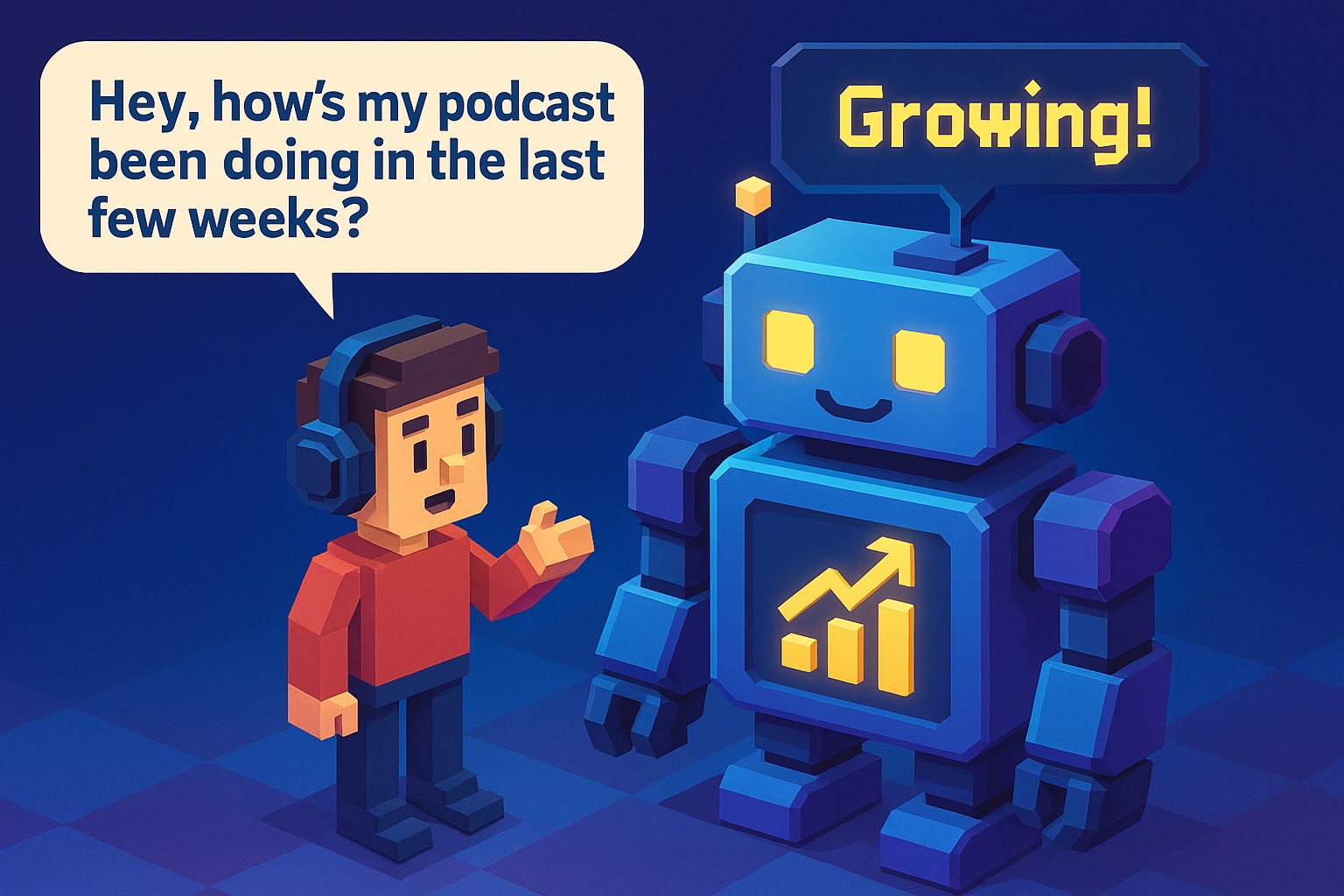
What were my best episodes this month? Which topics get the most downloads? With the Podigee MCP Server, you ask your AI assistant and get instant answers from your podcast data. Learn what the MCP Server can do, from conversational analytics to publishing episodes, and how to set it up.

Reading progress
In this article
In this article
Podcast MCP Server: Key Takeaways
MCP (Model Context Protocol) is an open standard that connects AI assistants like Claude or ChatGPT with external tools and data.
The Podigee MCP Server connects your AI assistant with your Podigee account and makes your podcast analytics easy to understand.
No more clicking through dashboards: You ask questions in plain language and get direct, usable answers.
More than analytics: Your assistant also plans and publishes episodes, maintains show notes and chapter marks, imports podcasts, submits them to platforms, and manages private feed listeners.
Who it's for: Solo creators, marketing teams, agencies, studios, podcast networks, and developers.
Access: Included in every current Podigee plan, starting with the free Launch plan. You connect your assistant yourself in a few steps.
You stay in control: You choose the permissions, see a preview before anything changes, and can revoke access at any time.
What Is MCP, and Why Does It Matter for Podcasters?
MCP stands for Model Context Protocol. It is an open standard developed by Anthropic and now supported by OpenAI, Google, and other AI providers. The idea is simple: instead of building a custom connection for every AI tool and every data source, MCP connects both sides through one shared protocol.
Picture it like a universal adapter: just as a USB-C cable links your phone to countless devices, MCP links AI assistants to tools and data, no matter which assistant you use. Once you connect the Podigee MCP Server, you can work with your podcast data in Claude, ChatGPT, or any other MCP-compatible assistant.
For podcasters, this is a big step. Until now, AI in podcasting was mostly about editing audio or writing text. With MCP, your assistant becomes a partner for your analytics, your production workflows, and your growth strategy. Which numbers Podigee tracks is explained on our Analytics & Reporting feature page.
What Can the Podigee MCP Server Do?
The Podigee MCP Server securely connects MCP-compatible AI assistants with your Podigee account. You say in your own words what should happen, and Podigee does it with the permissions you grant.
How it differs from the AI features inside Podigee: Podigee already creates AI transcripts and show notes for every episode and turns them into blog, newsletter, and social media drafts directly in the platform. The MCP Server is something else: it opens Podigee to external AI assistants through an open protocol. You work in the assistant you already use, outside the dashboard, and Podigee delivers the data.
Conversational analytics
At the heart of the MCP Server is the ability to explore your analytics as a conversation. Instead of digging through menus, you simply ask:
“How many downloads did I get this week?”
“What were my top 10 episodes last month? Include titles and download counts.”
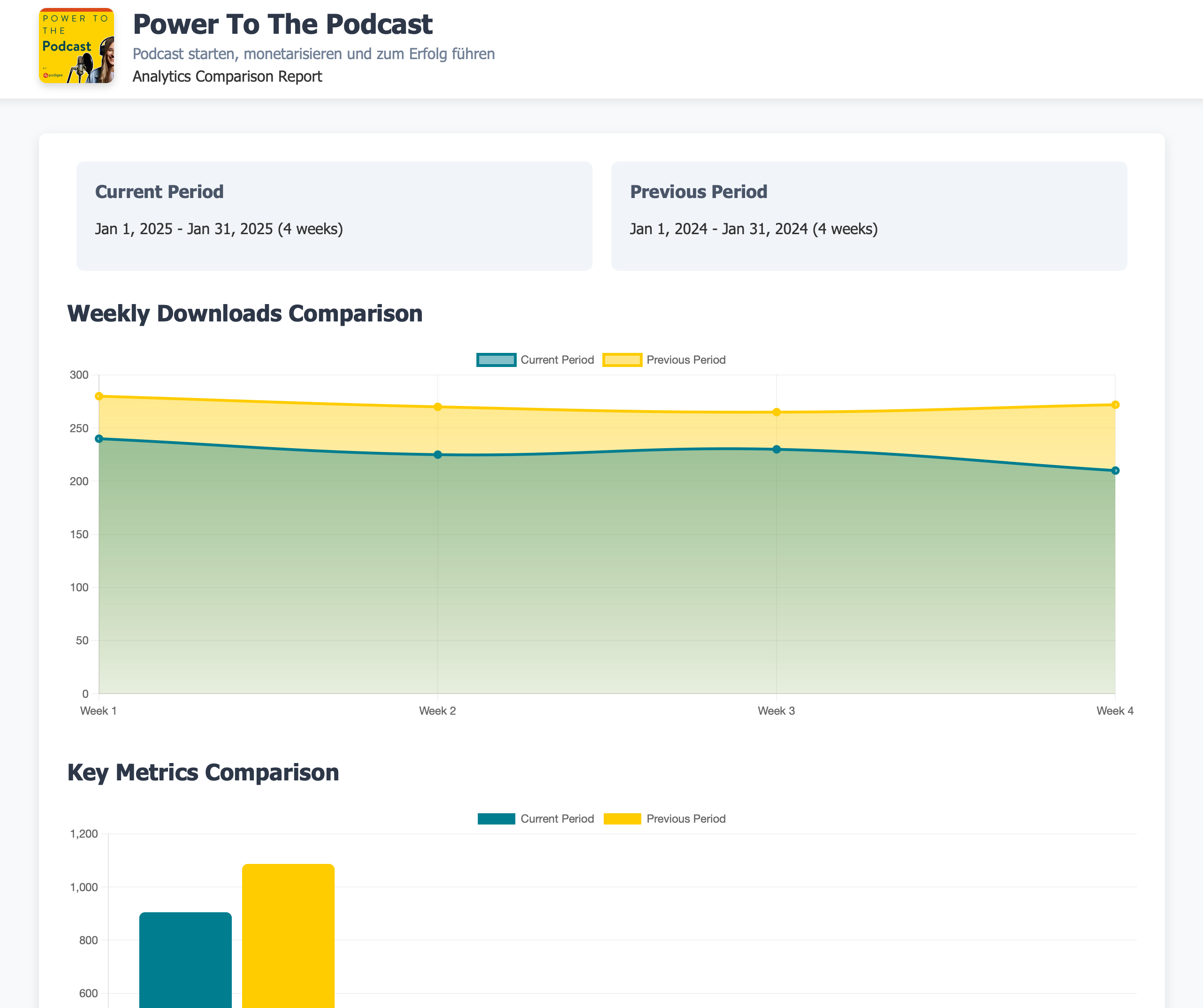
“Compare this quarter with the last one. What changed?”
“Which episode titles correlate with above-average performance?”
“Summarize this month’s performance in six sentences for an internal update.”
The MCP Server pulls the relevant numbers from your Podigee account, and your assistant puts them in context. You can follow up, narrow down, and compare without switching tools. How far back you can go depends on the analytics history your plan includes.
Tip: Want to know what each metric means? Read our guide to podcast analytics and the most important metrics.
Reports across multiple shows
If you run several podcasts, you know the problem: getting an overview means pulling data from different shows by hand. With the Podigee MCP Server, you simply ask across all your podcasts, for example “Which of my podcasts grew the most last quarter?”, and get an answer that covers every show.
Plan and publish episodes
Your assistant creates episode drafts, sets release dates, and publishes episodes. If it runs on your computer, for example Claude Code, Codex, or Cursor, it also uploads the audio or video file itself. In a chat like Claude or ChatGPT, you upload the file in Podigee, and your assistant takes over from there. It can also submit your podcast to Spotify, Apple Podcasts, Deezer, and Listen Notes. Learn more about podcast hosting and distribution with Podigee.
Maintain titles, show notes, and chapters
Your assistant updates titles, descriptions, show notes, keywords, chapter marks, and transcript sections, for one episode or for up to 50 episodes in a single request.
Move your podcast and manage private feeds
Switching from another host? From your previous host’s RSS feed, your assistant shows you which episodes will be imported and starts the import after you confirm. For private podcasts with Podigee, it protects a feed, creates listeners, activates or deactivates them, and sends password reset emails.
Work with transcripts and content drafts
Your assistant searches your transcripts for passages with timestamps and fetches the blog, newsletter, and social media drafts Podigee created from your episode. You keep working on them right in the chat. Analytics also help with monetization: ask which episodes and topics perform best and get ideas for sponsor pitches.
Tip: Curious where else AI can support your podcast? Read how to transcribe your podcast with AI and discover the best AI tools for podcasters.
In Practice: Example Prompts for Your Podcast MCP Server
To get a feel for what the MCP Server can do, here are some prompts you can try:
Performance and reporting: “What were my top episodes last month by downloads? Include the ranking, the title, and the main reason for the performance.” “Summarize this month’s performance in six bullet points for an executive update.” “Compare this quarter with the last and explain the main drivers.”
Content strategy: “Which topics consistently perform better than our median?” “Compare interview episodes with solo episodes. Which format works better, and why?” “Which episode titles correlate with higher performance?”
Growth and monetization: “Which episodes are best suited for sponsor pitches? Add a short pitch angle for each.” “Which topics should we focus on next month, based on the last 90 days?”
Workflows: “Create a draft for next Tuesday’s episode with this title and these show notes.” “Add chapter marks to my last five episodes.” “Submit my podcast to Spotify and Apple Podcasts.”
Who Is the Podigee MCP Server For?
The MCP Server is useful for anyone who wants to work with their podcast more quickly:
Solo creators find out which episodes resonate and take the results into their topic planning.
Marketing teams turn a question into a report for their next meeting and keep working with the text draft.
Agencies and studios compare a client’s episodes and go into client meetings prepared.
Podcast networks and media companies report across many shows and automate recurring tasks.
Developers, data scientists, and BI experts explore their podcast data in depth and build fully custom reports.
You don’t need any coding skills. If you can ask a question, you can use the MCP Server.
How to Set Up the Podigee MCP Server
Setup takes just a few steps:
Sign in to Podigee: If you’re new, create a free Podigee account with the Launch plan. If you’re still on an earlier plan such as Basic, Advanced, or Business, switch to a current plan under Plan & billing.
Connect your assistant: In Claude and ChatGPT, you add Podigee straight from their directories: Podigee in Claude and Podigee in ChatGPT. For other assistants, Data & integrations > Connected apps in Podigee shows you the fastest way and the server address mcp.podigee.com/mcp. Then you sign in with your Podigee account.
Choose permissions: Start with read access and add write permissions only when a task needs them.
Test the connection: Start with a simple question, for example “List my podcasts” or “Show my top episodes from the last 30 days.”
For tools without a sign-in in the browser, you create a personal access token with exactly the permissions they need. You’ll find step-by-step setup guides for every AI assistant in the Podigee documentation.
In this video, our co-founder Mati introduces the idea behind conversational podcast analytics. The setup has become even easier since then, so follow the steps above.
Your Data, Your Control
When you connect, you choose what your assistant may do, for example read only or analytics only. A connection always applies to a single Podigee account. Before anything changes, for example when publishing, importing, or adding listeners, you see a preview with the target and the values. Only your confirmation carries out the change, and it applies to that one change only.
You see all connected assistants in Podigee under Data & integrations > Connected apps and can revoke their access at any time. Your AI provider’s terms and privacy policy apply to everything you enter in the chat, so check them before your team starts using the MCP Server. Read how permissions and connections work in the Podigee documentation.
From the Source: Podigee’s Vision
When we launched the MCP Server, Podigee co-founder Mati said:
“I’ve been obsessed with AI’s potential, especially so in the space of podcasting. The MCP server is our first step toward a wave of AI-driven tools that make publishing smarter and more intuitive. It frees podcasters from rigid analytics and lets them explore their data in ways that matter to them.”
Since then, the MCP Server has grown from analytics into a way to run your whole podcast from your AI assistant. Discover all features of the Podigee MCP Server.
FAQ: Common Questions About the Podigee MCP Server
- What is an MCP server?
An MCP server is a piece of software that implements the Model Context Protocol, an open standard that lets AI assistants access external data and tools securely and in a standardized way. The Podigee MCP Server connects MCP-compatible assistants with your Podigee account, so you can query your analytics in plain language and handle tasks like publishing episodes in a conversation.
- Does the MCP Server replace the Podigee analytics dashboard?
No, the MCP Server doesn’t replace the Podigee analytics dashboard. It complements it: ad hoc questions, reports across multiple shows, and custom summaries become faster and more flexible than in the classic dashboard view.
- Which AI assistants can I connect to the Podigee MCP Server?
You can connect any AI assistant with MCP support, for example Claude, ChatGPT, Codex, Claude Code, Cursor, VS Code, or Gemini CLI. Claude and ChatGPT list Podigee in their own directories, where you add it with one click. In Podigee, Data & integrations > Connected apps shows you the fastest way and the server address for each assistant. To connect an assistant that isn’t listed there, follow our guide to connecting other MCP-compatible assistants.
- How do I get access to the Podigee MCP Server?
The Podigee MCP Server is included in every current plan, starting with the free Launch plan, and you can connect your assistant right away. If you’re still on an earlier plan such as Basic, Advanced, or Business, switch to a current plan in your Podigee account under Plan & billing.
- Do I need coding skills to set up the Podigee MCP Server?
No, you don’t need coding skills to set up the Podigee MCP Server. You add the server to your AI assistant, sign in with your Podigee account, and choose the permissions. After that, everything works in plain language. Developers and BI analysts can go further with personal access tokens and custom reports.
- Can my assistant publish or delete something by accident?
No, your assistant can’t change anything without your confirmation. Before anything changes, for example when publishing, deleting, or adding listeners, you see a preview, and only your confirmation carries out exactly that one change. Your assistant can only publish at all if you grant write permissions when you connect.
- Is the Podigee MCP Server suitable for small podcasts or mainly for networks?
The Podigee MCP Server is suitable for both. Solo creators use it to see which episodes resonate and to plan topics. Networks, agencies, and marketing teams benefit especially from reports across multiple shows and from automating recurring tasks.
- How does the Podigee MCP Server handle my data?
The Podigee MCP Server only shares what your connection’s permissions allow, and only for the one account you select when you connect. You can revoke access at any time. Your AI provider’s privacy policy applies to what you enter in the chat, so check it before using the MCP Server in your team.